
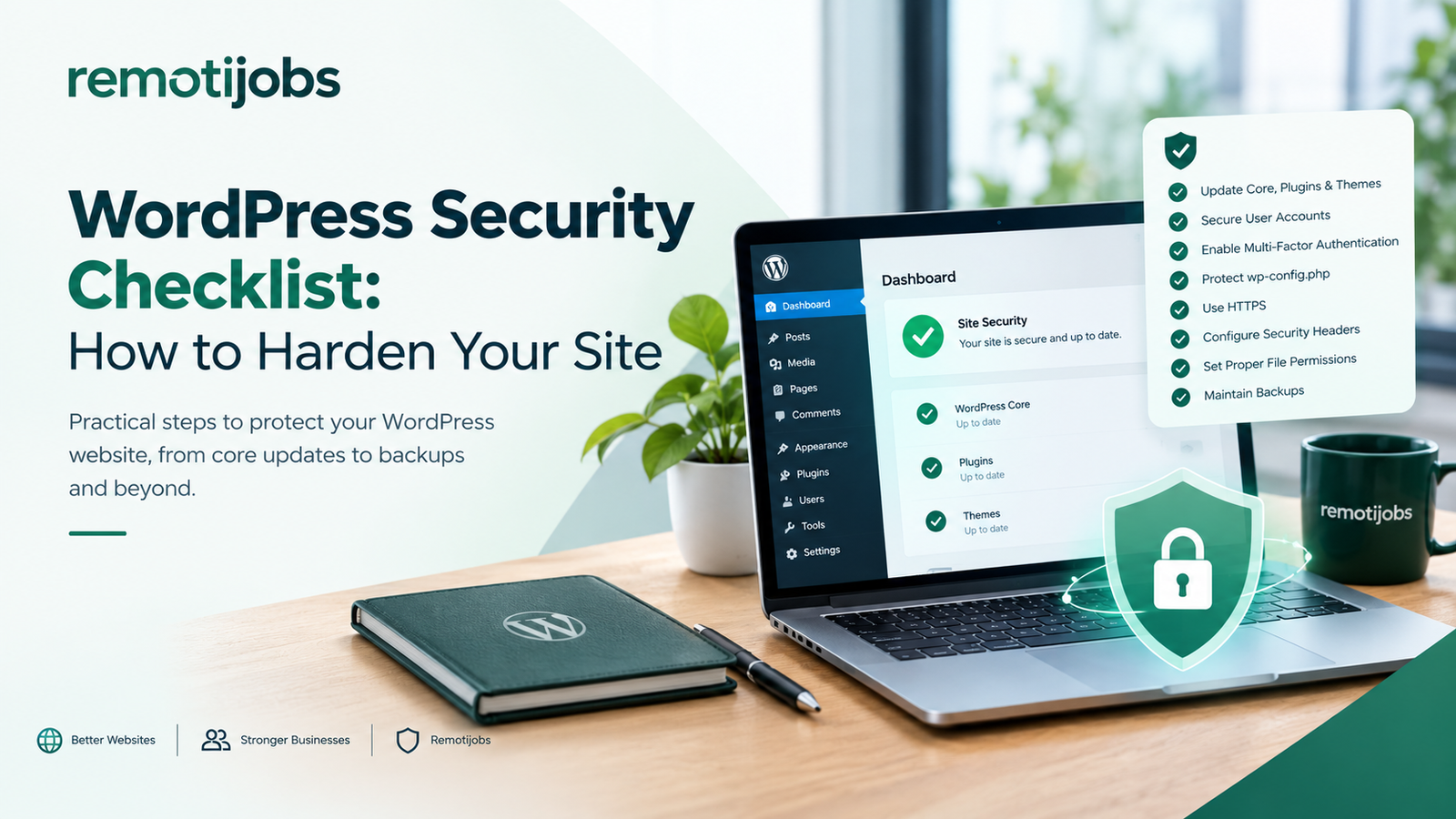
WordPress powers millions of websites, which makes it an attractive target for automated attacks, vulnerable plugins, stolen credentials, and malicious code. A proper WordPress security checklist helps website owners identify weaknesses before attackers exploit them.
WordPress security goes beyond installing a security plugin. A properly hardened website needs secure administrator accounts, updated software, controlled file permissions, protected configuration files, HTTPS, reliable backups, monitoring, and secure hosting.
This technical checklist focuses on the WordPress application, server environment, and administrative controls that can reduce the attack surface of a WordPress website.
WordPress Security Checklist: Keep WordPress Core Updated
WordPress regularly releases security updates that address vulnerabilities in the core platform. Delaying these updates can leave a website exposed even when its other security controls remain active.
Before updating WordPress:
- Create a recent backup.
- Confirm plugin and theme compatibility.
- Review the WordPress Site Health status.
- Test important website functions after the update.
- Remove outdated plugins or themes that no longer receive updates.
You can review the current WordPress requirements and supported software through the official WordPress documentation.
A website running an outdated WordPress version should become a priority in any WordPress security checklist.
Audit Plugins and Themes
Plugins and themes often create a larger attack surface than WordPress core because websites can contain dozens of third-party components.
Review every installed plugin and theme.
Check:
- Whether the developer still maintains it
- When the last update was released
- Whether security vulnerabilities have been reported
- Whether the plugin comes from a reputable source
- Whether the functionality remains necessary
- Whether unused plugins or themes can be removed
Deactivating an unnecessary plugin does not provide the same protection as removing it. If the software remains installed, administrators should continue monitoring it.
Avoid downloading plugins or themes from unofficial sources. Modified or “nulled” software can contain malicious code, backdoors, or hidden administrator accounts.
A regular plugin and theme audit should form part of your WordPress security checklist.
Secure Administrator Accounts
Administrator accounts provide extensive control over a WordPress website. Attackers who obtain administrator credentials can potentially modify content, install malicious software, create additional accounts, or access sensitive configuration.
Review all administrator accounts and remove accounts that no longer require administrative access.
Use these practices:
- Give users only the permissions they need.
- Remove former employees and contractors.
- Avoid sharing administrator credentials.
- Use strong, unique passwords.
- Review administrator accounts periodically.
- Use individual accounts instead of shared logins.
If several people manage the website, assign roles based on their actual responsibilities rather than giving everyone administrator access.
Enable Multi-Factor Authentication
Passwords alone should not protect privileged WordPress accounts.
Multi-factor authentication (MFA) adds another verification step before a user can access the dashboard. Even if an attacker obtains a password, MFA can make account takeover significantly more difficult.
Prioritize MFA for:
- Administrators
- Website owners
- Developers
- Hosting administrators
- Users with access to sensitive systems
MFA should be considered a fundamental part of modern WordPress website security, particularly for websites used by multiple employees or external contractors.
Protect wp-config.php
The wp-config.php file contains important configuration information, including database connection details and security keys.
The file should not be publicly accessible through the web server.
WordPress documentation recommends placing wp-config.php one directory above the WordPress installation when the server configuration allows it.
Also review:
- File permissions
- Database credentials
- Authentication keys and salts
- Database table prefixes
- Server access controls
Never publish database credentials or authentication keys in publicly accessible files.
WordPress Hardening: Disable Dashboard File Editing
WordPress can allow administrators to edit plugin and theme files directly from the dashboard.
That capability creates additional risk if an attacker compromises an administrator account.
You can disable dashboard file editing by adding the appropriate configuration to wp-config.php:
define( 'DISALLOW_FILE_EDIT', true );
This does not replace proper access controls, but it removes one method attackers could use to inject malicious PHP code after compromising an administrator account.
Developers can still manage files through controlled deployment or server-side access.
Keep PHP and the Server Updated
WordPress security depends on more than WordPress itself.
The underlying environment may include:
- PHP
- Web server software
- MySQL or MariaDB
- Operating system
- Hosting control panel
- CDN
- DNS infrastructure
Running an outdated PHP version can introduce security and compatibility risks.
Check the PHP version used by the website and confirm that the hosting environment supports a currently supported release.
Also review your hosting configuration for unnecessary services, exposed ports, outdated software, and weak administrative credentials.
For higher-risk websites, server-level security should be included in the overall WordPress security checklist, rather than treating WordPress as an isolated application.
Review File Permissions
Incorrect file permissions can allow unauthorized users or processes to modify website files.
Your hosting environment should use permissions appropriate for the server configuration and application requirements.
Pay particular attention to:
wp-config.php- WordPress core files
- Plugin directories
- Theme directories
- Upload directories
- Server configuration files
Avoid making files or directories writable simply because a plugin installation or update requires it.
If your hosting environment allows it, review file ownership and permissions after major migrations or server changes.
Protect the Uploads Directory
The WordPress uploads directory deserves special attention because it contains user-uploaded files.
Depending on the website, attackers may attempt to upload executable files through vulnerable forms, plugins, or compromised accounts.
Review whether the server can execute PHP files from directories intended only for media uploads.
For higher-risk websites, server configuration can restrict executable file types in upload directories.
Also review:
- Media upload permissions
- File-type restrictions
- Contact forms
- User registration forms
- Membership systems
- File-upload plugins
These controls can significantly reduce the impact of an upload vulnerability.
Secure the Database
The WordPress database stores website content, user information, configuration data, and other important records.
Protect database access by:
- Using strong database credentials
- Restricting remote database access when unnecessary
- Keeping database software updated
- Using appropriate database permissions
- Maintaining secure backups
- Monitoring unusual database activity
Do not give the WordPress database user more privileges than the application requires.
Database security becomes especially important for e-commerce websites, membership platforms, customer portals, and websites containing sensitive business information.
Enforce HTTPS
HTTPS protects communication between website visitors and the web server.
A valid SSL/TLS configuration helps protect:
- Login credentials
- Contact form submissions
- Customer information
- Session cookies
- Administrative connections
Make sure the website consistently uses HTTPS and does not expose login or sensitive pages over unsecured HTTP.
Also review redirects and canonical URLs to prevent inconsistent HTTP and HTTPS versions.
HTTPS should be a basic requirement in every WordPress security checklist.
Review HTTP Security Headers
HTTP security headers provide another layer of browser-side protection.
Depending on the website and hosting environment, useful headers can include:
- Content-Security-Policy
- Strict-Transport-Security
- X-Content-Type-Options
- Referrer-Policy
- Permissions-Policy
- Frame-related protections
Security headers require careful configuration. A poorly configured Content Security Policy, for example, can break legitimate scripts or third-party services.
Test headers before deploying them to production.
This is one area where a technical WordPress security assessment can identify configuration problems that a basic security plugin may not detect.
WordPress Security Checklist: Protect the Login Page
WordPress login endpoints are frequent targets for automated password attacks.
Consider implementing:
- Rate limiting
- Login attempt restrictions
- MFA
- Strong passwords
- CAPTCHA where appropriate
- IP-based controls when practical
- Web Application Firewall protection
Changing the login URL alone should not be considered a complete security solution.
The stronger approach combines authentication controls, rate limiting, monitoring, and administrator account management.
Consider a Web Application Firewall
A Web Application Firewall (WAF) can inspect incoming requests before they reach the WordPress application.
Depending on the configuration, a WAF can help identify or block:
- SQL injection attempts
- Cross-site scripting attempts
- Malicious requests
- Automated attacks
- Suspicious IP addresses
- Known attack patterns
A WAF should complement secure coding, software updates, access controls, and server hardening.
It should not become a substitute for maintaining the website itself.
Maintain Tested Backups
A backup is only useful if you can successfully restore it.
Maintain backups of:
- WordPress files
- Database
- Uploaded media
- Configuration information
- Important server settings
Ideally, maintain multiple backup copies and store at least one copy separately from the primary hosting environment.
Test restoration procedures periodically.
A backup that has never been restored is an assumption, not a verified recovery process.
Monitor Website Changes
Prevention alone cannot guarantee that a website will never be compromised.
Monitoring can help identify suspicious changes after they occur.
Monitor important areas such as:
- Administrator accounts
- Plugin installations
- Theme changes
- Core file modifications
- Unexpected PHP files
- Database changes
- Login activity
- Server logs
- DNS changes
File integrity monitoring can also help identify unexpected modifications to WordPress files.
Early detection can reduce the time between compromise and remediation.
Check for Malware
A compromised WordPress website may not immediately display obvious symptoms.
Potential indicators include:
- Unexpected redirects
- Spam pages
- Unknown administrator accounts
- Suspicious PHP files
- Modified plugins
- Unexpected JavaScript
- Search-engine spam
- Unusual server resource usage
- Unknown scheduled tasks
A malware scan can help identify suspicious files, but manual investigation may still be necessary.
If you suspect a compromise, avoid simply deleting suspicious files without understanding how the attacker gained access. Otherwise, the same vulnerability may allow the attacker to return.
Review Cron and Scheduled Tasks
WordPress uses scheduled tasks for functions such as publishing posts, sending notifications, and running plugin processes.
Review scheduled tasks when investigating unusual website behavior.
Look for:
- Unknown scheduled events
- Suspicious plugin-generated tasks
- Unexpected recurring processes
- Tasks created after a suspected compromise
Server-level cron jobs should also be reviewed when you have access to the hosting environment.
An attacker who establishes persistence may attempt to recreate malicious files or processes after cleanup.
Reduce the Attack Surface
One of the most effective security principles is simple: remove what you do not need.
Every unnecessary plugin, theme, user account, service, API integration, and server component increases the potential attack surface.
Review whether you can remove:
- Unused plugins
- Inactive themes
- Old administrator accounts
- Unused staging environments
- Legacy integrations
- Unnecessary server services
- Abandoned forms
- Unused API credentials
A smaller attack surface makes security monitoring and maintenance easier.
Perform Regular Assessments
Website security should not be a one-time task.
Perform a technical security review after:
- A major WordPress update
- A website migration
- A redesign
- A hosting change
- Installation of major plugins
- Changes to administrator access
- Development work
- A suspected security incident
For businesses that depend heavily on their website, schedule periodic security assessments instead of waiting for an obvious problem.
A professional WordPress security assessment can review the application, configuration, hosting environment, access controls, and publicly exposed services.
When to Use a WordPress Security Checklist
A WordPress security checklist is particularly useful when:
- Launching a new WordPress website
- Taking over an existing website
- Migrating to a new host
- Redesigning a website
- Adding e-commerce functionality
- Adding membership or customer portals
- Hiring new developers or administrators
- Installing major plugins
- Recovering from a suspected compromise
- Preparing a website for a security assessment
Using the same checklist consistently also makes security easier to document.
Instead of relying on memory, website owners can record what was reviewed, what changed, and which issues still require attention.
Final WordPress Security Checklist
Before considering a WordPress website properly hardened, review the following:
- WordPress core is updated
- Plugins are updated and unnecessary plugins removed
- Themes are updated and unused themes removed
- Administrator accounts have been reviewed
- Strong passwords are enforced
- MFA protects privileged accounts
wp-config.phpis protected- Dashboard file editing is disabled where appropriate
- PHP and server software are supported and updated
- File permissions are correctly configured
- Upload directories are protected
- Database access is restricted
- HTTPS is enforced
- Security headers have been reviewed
- Login protection is enabled
- WAF protection is considered
- Backups are maintained
- Backup restoration has been tested
- Website changes are monitored
- Malware checks are performed
- Cron and scheduled tasks are reviewed
- Unnecessary components have been removed
- Regular security assessments are scheduled
Need a Technical WordPress Security Assessment?
A WordPress website can look perfectly normal while still having weaknesses in its plugins, configuration, authentication, hosting environment, or server setup.
Remotijobs provides cybersecurity services that can help businesses identify website security weaknesses before they become larger problems.
If you are unsure whether your WordPress website has been properly hardened, start with a Free Website Growth & Security Assessment.
We can review your website from both a security and technical perspective and identify areas that deserve attention.
Your website should not only work. It should be properly assessed, maintained, and protected.