
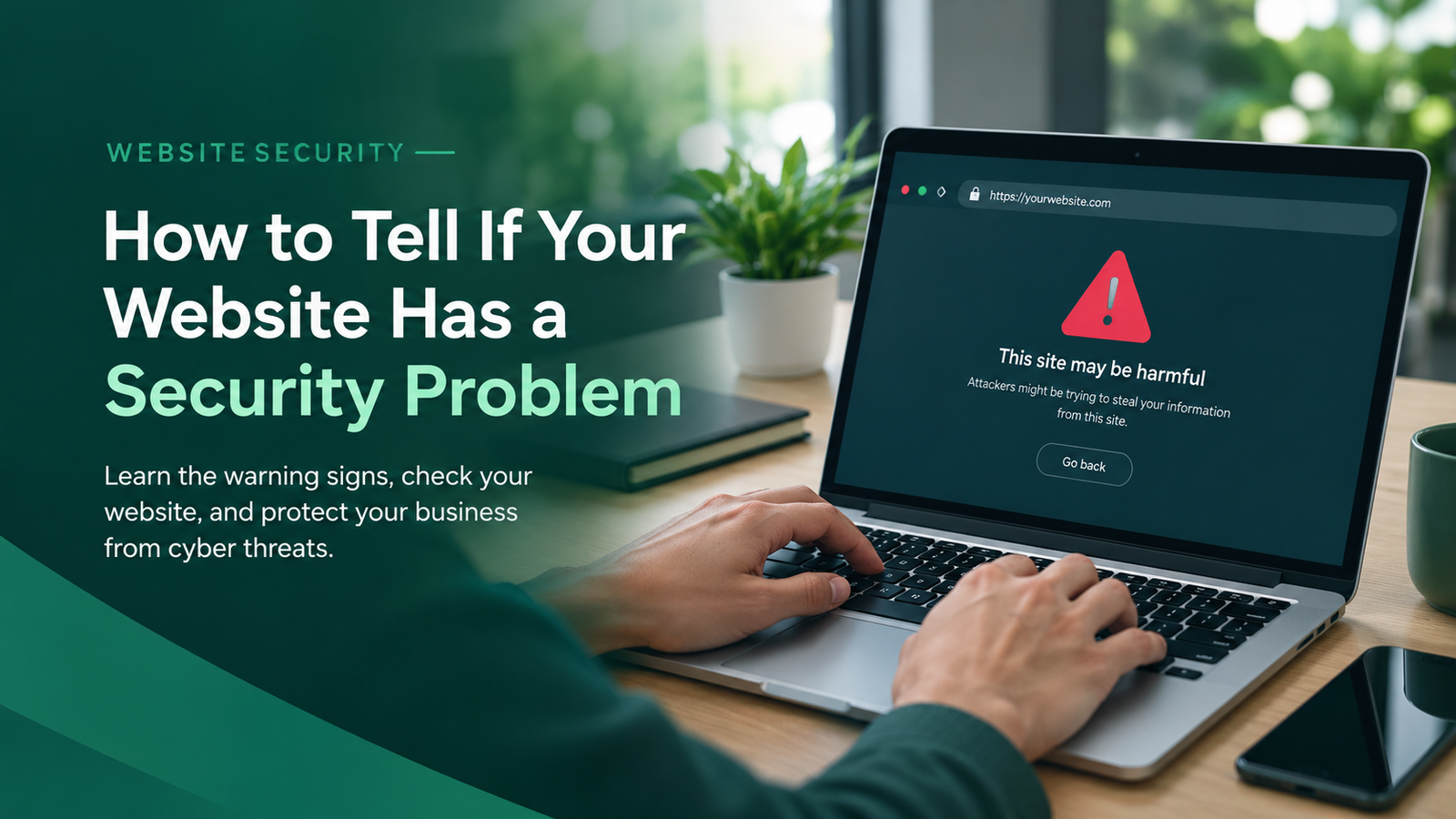
You can identify website security problems by looking for unusual redirects, unknown administrator accounts, suspicious website content, browser security warnings, and unexpected login activity. Outdated software, malware alerts, and unfamiliar pages in Google search results can also indicate a security issue. However, some problems remain hidden, so checking your website regularly is important.
Your website plays an important role in your business. It helps customers learn about your services, contact your team, and make purchasing decisions. If your website is not secure, attackers may steal information, damage your reputation, or disrupt your business.
In this guide, Remotijobs explains the common signs of website security problems, how to check your website, and what you should do if you discover an issue.
Why Website Security Matters for Your Business
A website is more than an online presence. It may collect customer information, receive inquiries, process transactions, and connect to other business systems.
When a website has security weaknesses, the consequences can extend beyond the website itself.
Common risks include:
- Data exposure: Attackers may access customer information or confidential business data.
- Website downtime: Security incidents may make your website unavailable.
- SEO damage: Hacked pages and malicious content can affect search visibility.
- Loss of customer trust: Visitors may avoid your website if they see security warnings or suspicious content.
- Financial losses: Recovering a compromised website can require emergency technical work and additional security expenses.
- Business disruption: A compromised website may expose connected accounts or systems to further attacks.
Website security is not just an IT concern. It is an important part of protecting your business operations and customer relationships.
10 Signs Your Website May Have Security Problems
Not every unusual website behavior indicates a cyberattack. However, the following warning signs deserve investigation, especially when they appear unexpectedly.
1. Your Website Redirects Visitors to Unknown Pages
If visitors are redirected to unfamiliar websites without clicking anything, your website may have been compromised.
For example, customers might land on suspicious advertisements, unrelated shopping pages, or websites that have nothing to do with your business.
This behavior can result from malicious scripts, compromised plugins, or unauthorized changes to your website configuration.
What to do:
- Open your website in a private or incognito browser window.
- Test several important pages on desktop and mobile devices.
- Check whether the redirects happen only on certain pages or devices.
- Ask your hosting provider or a security professional to investigate persistent redirects.
Do not assume your website is safe simply because the redirects do not happen every time.
2. Google Shows Security Warnings or Suspicious Search Results
Google or your browser may warn visitors that your website contains suspicious content or could be unsafe.
You may also discover unfamiliar pages appearing in Google search results. These pages might contain spam, unrelated advertisements, or suspicious links.
Such changes can indicate unauthorized content or a website compromise.
What to do:
- Open Google Search Console.
- Review the Security Issues report.
- Check the Manual Actions report.
- Investigate unfamiliar URLs indexed under your domain.
A drop in rankings alone does not prove that your website has been hacked. However, unexpected security alerts or suspicious pages deserve further investigation.
3. Your Website Suddenly Becomes Slow
A website that suddenly becomes slow or behaves strangely may have a technical problem or suspicious activity.
Malicious scripts, unauthorized processes, and compromised plugins can affect performance. However, slow loading can also result from poor hosting, large images, or plugin conflicts.
What to do:
- Compare current performance with previous results.
- Review your hosting resource usage and server logs.
- Check recently installed plugins, themes, and scripts.
- Ask your hosting provider to investigate unexplained changes.
Do not assume every performance issue is a security incident. Look for additional warning signs before drawing conclusions.
4. You Find Unknown Administrator Accounts
An unfamiliar administrator account is a serious warning sign, particularly if nobody on your team created it.
An administrator can often change website settings, publish content, install plugins, and create additional accounts.
If an attacker gains administrator access, they may take control of your website.
What to do:
- Review every administrator account.
- Confirm that each account belongs to an authorized person.
- Investigate unfamiliar email addresses and account activity.
- Remove unauthorized access after preserving relevant evidence and securing the website.
Before removing an unfamiliar account, confirm that it does not belong to a legitimate developer or maintenance provider.
5. Your Website Displays Strange Content or Pop-Ups
Unexpected advertisements, suspicious links, unfamiliar pages, or strange pop-ups can indicate malicious code or unauthorized website changes.
These problems can damage your brand and expose visitors to scams or harmful downloads.
What to do:
- Check recently published content.
- Review installed plugins and themes.
- Compare affected pages with a known-good backup.
- Investigate suspicious file or configuration changes.
Simply deleting the visible content may not solve the problem. You should also identify and address the underlying cause.
6. Your Website Has HTTPS or SSL Certificate Warnings
If your browser displays a certificate warning when you visit your website, visitors may not be able to establish a trusted connection.
Possible causes include an expired SSL certificate, an incorrect configuration, or a domain mismatch.
This does not automatically mean your website has been hacked, but the issue should be addressed promptly.
What to do:
- Confirm that your website uses HTTPS.
- Check whether the SSL certificate is valid for your domain.
- Investigate browser warnings about certificate validity.
- Ask your hosting provider to correct configuration problems.
Remember that HTTPS protects information in transit but does not guarantee that your website is free from security vulnerabilities.
7. Your Website Sends Suspicious Emails
If customers report receiving strange emails from your business, your website or email account may have been compromised.
Attackers sometimes use compromised websites to send spam, phishing messages, or fraudulent notifications.
What to do:
- Review your email and hosting activity logs.
- Check your account security settings.
- Verify SPF, DKIM, and DMARC configurations where applicable.
- Investigate unauthorized scripts or website forms that may be sending messages.
Email authentication helps reduce spoofing, but it does not prevent every type of email abuse.
8. Your Website Software or Plugins Are Outdated
Outdated website software can contain security vulnerabilities that attackers may exploit.
This includes your content management system, themes, plugins, and server software.
Running an outdated component does not automatically mean your website has been compromised. However, known vulnerabilities may leave your website exposed.
What to do:
- Install available security updates.
- Update plugins and themes from trusted sources.
- Remove software you no longer use.
- Replace unsupported components with maintained alternatives.
- Back up your website before significant updates.
If your website uses WordPress, follow our WordPress Security Checklist for more specific guidance on reviewing and protecting your WordPress website.
9. You Receive Unusual Login Alerts
Unexpected login notifications, repeated failed login attempts, and unfamiliar password-reset emails can indicate attempts to access your website.
An unexplained successful login deserves particular attention.
What to do:
- Review login histories and available security logs.
- Use strong, unique passwords.
- Enable multi-factor authentication for administrator accounts.
- Limit unnecessary user permissions.
- Revoke suspicious sessions if an account may have been compromised.
If you suspect unauthorized access, secure your website and related accounts using a trusted device.
10. Your Hosting Provider Reports Malware
Your hosting provider may notify you about malware, suspicious files, or unusual activity on your account.
Take these alerts seriously, even if your website looks normal. Some malicious code operates without visibly changing the homepage.
What to do:
- Read the hosting provider’s security notice.
- Identify the affected files, accounts, or services.
- Review available malware scan results and server logs.
- Ask your hosting provider for assistance.
- Arrange a professional investigation if the cause is unclear.
Avoid deleting files or restoring a backup without understanding the problem. You could remove useful evidence or reintroduce the same vulnerability.
How to Check Your Website for Security Problems
You can perform several basic checks without advanced technical knowledge. These steps can help you identify potential risks and determine whether your website needs a more detailed security assessment.
Step 1: Check Google Search Console
Log in to Google Search Console and review the Security Issues report. Look for unfamiliar pages in Google’s index and investigate unexpected changes.
A clean report does not guarantee that your website has no vulnerabilities, so continue with the other checks.
Step 2: Check Your SSL Certificate
Visit your website using HTTPS. Look for browser warnings and confirm that your SSL certificate is valid for your domain.
If you see a certificate error, contact your hosting provider to investigate the configuration.
Step 3: Review Website Users
Check your website’s administrator accounts and confirm that each account belongs to an authorized person.
Remove unnecessary access and investigate accounts you cannot verify. Also review access to your hosting account, domain registrar, and other connected services.
Step 4: Follow a Website Security Checklist
A checklist helps you review important security measures, including passwords, software updates, backups, and access permissions.
For practical guidance, read our Free Website Security Checklist for Small Businesses.
This guide provides additional steps that small business owners can use to review their website security and identify areas that may need attention.
Step 5: Update Your Website Software
Check for updates to your content management system, plugins, themes, and supported server software.
Remove software you no longer use and replace unsupported components. Always create a reliable backup before performing major updates.
If you use WordPress, our WordPress Security Checklist provides additional platform-specific checks and recommendations.
Step 6: Run a Website Security Scan
Use a reputable website security tool to check for known vulnerabilities, malware indicators, and common configuration issues.
Keep in mind that a basic scan may not detect every security problem. Websites with customer accounts, payment features, or custom applications may need more detailed testing.
Only scan websites and systems you own or have permission to test.
Step 7: Check Your Backups
Make sure your website backups are recent and can be restored successfully.
Store backups securely and, where possible, keep them separate from your live website. This helps protect your recovery options if your website is compromised.
Common Website Security Problems and Their Risks
| Security problem | Possible risk |
|---|---|
| Weak passwords | Unauthorized account access |
| Outdated plugins | Exploitation of known vulnerabilities |
| Malware | Harmful activity or suspicious content |
| Unauthorized administrator accounts | Loss of website control |
| Incorrect file permissions | Unauthorized file access or changes |
| Poor server configuration | Exposure of sensitive resources |
| Missing or unreliable backups | Difficult website recovery |
| Inadequate monitoring | Delayed detection of an attack |
The level of risk depends on your website’s design, functionality, and the information it handles. An online store, for example, may need stronger controls than a basic business website.
What to Do If Your Website Has a Security Problem
If you suspect your website has been compromised, take action promptly. Avoid making changes that could destroy evidence or worsen the situation.
1. Secure Your Accounts
If account compromise is suspected, use a trusted device to reset affected passwords, revoke suspicious sessions, and enable multi-factor authentication.
Secure related hosting, email, and domain accounts if they may also be affected.
2. Contact Your Hosting Provider
Ask your hosting provider to investigate suspicious activity, malware alerts, or unauthorized changes.
The provider may be able to identify affected files, server issues, or unusual activity in its logs.
3. Investigate the Cause
Review available logs and identify affected files, accounts, or software.
Understanding how the incident occurred is important because removing the visible symptoms may not prevent another attack.
4. Remove the Threat
Clean infected files, address vulnerabilities, and remove unauthorized access through a proper recovery process.
For a serious compromise, consider engaging a qualified security professional.
5. Restore and Verify Your Website
Restore verified clean files or backups when appropriate. Apply necessary security fixes and test important pages, forms, integrations, and account access.
Make sure the original vulnerability has been addressed before returning affected services to normal operation.
6. Monitor Your Website After Recovery
Continue checking security alerts, account activity, and website behavior after cleanup.
If personal information may have been exposed, seek appropriate professional guidance about your legal and contractual notification obligations.
How Often Should You Check Your Website Security?
Website security requires regular attention rather than a one-time check.
- Regularly: Review security alerts, important software updates, and backup status.
- Monthly: Review administrator access, plugins, themes, and important security settings.
- After major changes: Recheck security after a redesign, new integration, or hosting migration.
- Periodically: Arrange a more detailed security assessment based on your website’s complexity and risk.
- Immediately after a warning: Investigate suspected malware, unauthorized access, or other signs of compromise.
Websites that process payments or handle sensitive customer information may require more frequent monitoring and additional safeguards.
Can a Website Have Security Problems Without Showing Warning Signs?
Yes. A website can have security problems even when it looks completely normal.
Some attackers hide malicious code, create spam pages that are difficult to find, or maintain unauthorized access without changing the homepage. Others exploit vulnerabilities without producing obvious symptoms.
That is why you should not rely only on what you see when visiting your website.
Regular updates, access controls, security monitoring, reliable backups, and professional assessments can help identify problems earlier.
Is HTTPS Enough to Keep Your Website Secure?
No. HTTPS encrypts information exchanged between a visitor’s browser and your website, but it does not prevent every type of attack.
Your website may still have outdated plugins, weak passwords, malicious code, or insecure settings despite having a valid SSL certificate.
For better protection, combine HTTPS with software updates, strong authentication, appropriate access permissions, monitoring, and regular backups.
Protect Your Website with Remotijobs
Identifying website security problems early can help protect your business, customers, and online reputation. However, some vulnerabilities require technical investigation to identify and resolve.
Remotijobs helps businesses evaluate website improvement opportunities and potential security concerns through its Free Website Growth & Security Assessment.
An assessment can help identify areas that need attention, explain potential risks, and outline practical next steps for improving your website.
Not sure whether your website is secure?
Request a Free Website Growth & Security Assessment from Remotijobs.
You can also explore our Cybersecurity Services to learn how we help businesses address website security risks and improve their technology.
Frequently Asked Questions
What Are the Most Common Website Security Problems?
Common website security problems include outdated software, weak passwords, malware, unauthorized administrator accounts, insecure configurations, and vulnerable plugins.
How Can I Tell If My Website Has Been Hacked?
Look for unexpected redirects, unfamiliar content, unknown administrator accounts, suspicious login activity, and malware alerts. These signs do not always confirm a hack, but they require investigation.
Can Google Tell Me If My Website Has Been Hacked?
Google Search Console may report certain security issues, such as hacked content or malware. However, it does not detect every vulnerability, so additional checks may be necessary.
Is WordPress Safe for Business Websites?
Yes. WordPress can be secure when properly maintained. Use trusted plugins and themes, install updates, protect administrator accounts, and maintain reliable backups. Our WordPress Security Checklist provides more guidance.
Does a Website Security Scan Find Every Problem?
No. Security scans can identify many known issues, but they may miss vulnerabilities in custom code, authenticated areas, or complex integrations. A more detailed assessment may be needed.
How Much Does a Website Security Assessment Cost?
The cost depends on the size and complexity of your website and the type of testing required. A basic scan is different from a manual vulnerability assessment or penetration test. Ask the provider to explain the scope of the assessment before comparing prices.
Where Can Small Businesses Find a Website Security Checklist?
Small businesses can start with our Free Website Security Checklist for Small Businesses. It provides practical guidance for reviewing website security and identifying areas that may need improvement.